


PDF Reader – PDF Viewer
4.23.35K Reviews
App Specs
- Version
- 3.3.0
- Updated On
- License
- Free
- Downloads
- 100,000,000+
- Developer
- EZTech Apps
- Categories
- Productivity
- Platform
- Android
Screenshots
 Analysis by AppCompare
I reach for PDF Reader – PDF Viewer when I need to open and work with documents on my phone without turning the task into a file-management project. It is a productivity app from EZTech Apps, and its appeal is straightforward: reading, marking up, and organizing PDFs in one place. That combination suits everyday paperwork and study notes better than a reader meant only for viewing, though it won’t replace a full desktop document workflow.
Where PDF tasks can get stuck
The friction with mobile PDFs often starts before reading: a file arrives in a message, gets saved somewhere unfamiliar, and then disappears among downloads. This app is designed to make documents easier to find and handle, with access to PDFs from its home screen, search, folders, and file renaming. In practice, the useful habit is to give a document a recognizable name as soon as you locate it. Searching for “lease renewal” is far more practical than trying to remember which file was called “Document1.”
Search helps once a library grows, but it works best when the files themselves are identifiable and kept in a sensible structure. I’d create a few broad folders—such as work, study, and personal paperwork—rather than build a deep hierarchy that becomes awkward on a small screen. That small bit of housekeeping makes the app’s organization tools more valuable than simply leaving every PDF in one long list.
There is a useful distinction between finding a PDF in the app and finding it on the device. If a document does not appear where you expect, first check where it was saved or whether it was opened from another app. Then return to the reader and look through its available document view or search. This is a sensible first check before assuming the file is damaged. A tidy naming and folder routine also makes later sharing less error-prone.
Setup checks that save time
Before settling into a reading session, I’d open a familiar PDF and test the basics: move between pages, zoom in, try a bookmark, and see how the annotation tools feel on the screen. That quick trial helps you decide whether you prefer marking a page as you read or taking separate notes. It also gives you a simple reference point if a particular document behaves differently later.
The app is free to install and is rated for Everyone. It has a 4.2 average from around 523,000 ratings, and has been installed over 100 million times. Optional in-app purchases range from about $0.49 to $59.99 per item, so I’d check the purchase details shown in the app before choosing anything paid. The current version is 3.3.0, and it requires Android 8.0 or later; those details matter if you are installing it on an older device.
It is worth deciding early whether this will be your main PDF organizer or simply a reader you open when needed. If you use it as the main place for documents, consistent folders and names pay off. If you only need to inspect an occasional attachment, the built-in viewer on your phone may already be enough. There is no need to move a whole library unless the extra organization and markup tools solve a real problem for you.
Worth Reading Before You Choose

Flipboard Shows What News Apps Must Do Beyond the Feed

Switching to Android Auto Means Rethinking Your Driving Routine

Google Calendar Makes a Crowded Week Easier to Manage

Ludo King Makes the Most of the Minutes Between Plans

Baby Panda World Brings Quick Play to Modern Phones, but Its Game Library Feels Busy

ESPN’s Live Game View Makes Following Close Games Easier
Recovering a workable reading flow
For a long report or study pack, I find bookmarks more useful as checkpoints than as a substitute for remembering everything. Mark the page where a section begins, or where you need to return after a break, instead of bookmarking every page with a detail worth revisiting. A handful of meaningful markers is easier to navigate than a cluttered set.
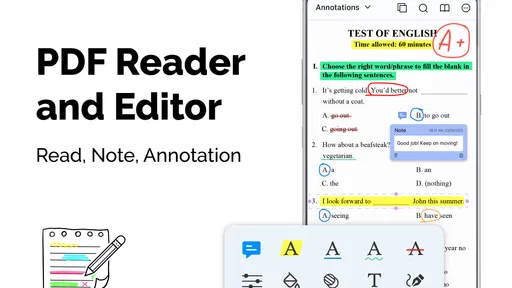
Annotations work best when they answer a specific question. I might highlight a sentence I need to verify, add a short note beside a decision, or draw attention to a figure that needs follow-up. Before sharing a marked-up file, I’d reopen it and check that the annotations are visible and that I am sending the intended copy. That simple review is especially worthwhile when the original and edited versions have similar filenames.
If a document seems difficult to read, try adjusting the zoom and moving to another page before deciding the app has failed. A scanned page, tiny text, or a complicated layout can be hard to inspect on any phone, even when the PDF opens correctly. For a document where precise formatting matters, a larger screen may be a better choice than repeatedly pinching and panning on a handset.
A Smooth Experience with Intuitive Design
First things first, let’s talk about the user interface. The moment you open PDF Reader – PDF Viewer, you’ll notice how clean and intuitive everything is. It’s like the developers knew exactly what we needed and delivered it in a no-nonsense layout. Navigating through the app is a piece of cake. You can easily access your PDFs right from the home screen, and the search function is a lifesaver when you’re dealing with a large library of documents.
Reading and Annotating Made Easy
Reading PDFs on this app is as smooth as butter. You can zoom in and out with a pinch, and the text remains crystal clear. But where it really shines is in the annotating department. Whether you need to highlight text, add notes, or draw directly on the document, this app has got you covered. The tools are straightforward and don’t require a PhD to figure out. It’s perfect for students or professionals who need to mark up their documents on the fly.
Another cool feature is the ability to bookmark pages. If you’re working on a lengthy document, this feature will help you keep track of where you left off, making it super convenient for marathon study sessions or project reviews.
Seamless File Management
This app doesn’t just stop at reading and annotating. It also excels in file management. You can organize your PDFs into folders, which is a godsend if you’re a neat freak like me. Plus, there’s a nifty option to rename files directly within the app, so you won’t end up with a bunch of "Document1" and "Document2" chaos.
Sharing documents is also a breeze. You can send them via email, messaging apps, or even upload them to cloud services. It’s all about making your life easier, and this app does that in spades.
Security Features You Can Trust
We all want to keep our documents secure, right? Well, this app has thought of that too. With password protection, you can lock your PDFs to keep prying eyes away. It’s a solid feature for those sensitive documents that you don’t want falling into the wrong hands.
And let’s not forget about the night mode. If you’re burning the midnight oil, this feature will save your eyes from strain. It’s these little touches that show how much thought went into creating an app that’s not just functional, but user-friendly as well.
Choosing it for the right kind of work
A realistic use for this app is handling a form or set of instructions while away from a desk. Imagine receiving a PDF for a class or a work meeting, saving it to your phone, and using a folder to keep it with related material. You can read through it during a commute, bookmark a section to revisit, and add a note or highlight where you need to follow up. Later, you can share the document through a messaging app or email. That is a practical mobile workflow, provided the file is readable on a small display and you check the marked-up copy before sending it.
Compared with a basic built-in PDF viewer, this app’s advantage is the bundle: folders, renaming, bookmarks, annotations, and sharing sit alongside reading. A dedicated cloud-storage app may be preferable if your main concern is keeping files synchronized across devices, while a desktop PDF editor is a better fit for precise layout work or extensive document revisions. I see this reader as a middle ground for people who want more than opening and scrolling, without treating their phone as a complete office workstation.
It is also a reasonable choice for students who annotate readings and need to return to particular pages, or for anyone who routinely receives paperwork on a phone. It is less compelling if you rarely use PDFs, already have a reliable document system, or need advanced editing beyond reading and markup. I would not choose a mobile reader as the only tool for a task where exact page layout, careful form completion, or detailed revision is central; a larger screen and a more specialized editor are more comfortable for that work.
When the app may not be the cause
If a file will not open or appears incomplete, I would first check whether the copy on the device is fully saved and whether it opens from its original source. Try locating the document again, rather than relying on an old item in a recent list, and compare it with the copy attached to the message or stored in the folder where it came from. This helps separate a file or transfer problem from a reader problem without assuming the app is responsible.
For sharing, check which version you selected and whether your recipient needs the annotations. A marked-up copy may be useful for collaboration, while an untouched original is often the safer choice for records. Keeping the original separate before making changes is a simple workflow safeguard, particularly for important paperwork. Password protection can help restrict access to a PDF, but it does not replace careful handling of the file or checking who receives it.
Night mode can make a dark-room reading session more comfortable, but it does not make every document equally legible. Scans, diagrams, and pages with small print may still call for a brighter display or a larger screen. If the problem is that the source itself is blurry or poorly scanned, switching reader apps may not improve the underlying page.
Final Thoughts
All in all, PDF Reader – PDF Viewer is a powerhouse of a tool, wrapped up in an easy-to-use package. It’s perfect for anyone who deals with PDFs regularly, whether you’re a student, a professional, or just someone who loves keeping things organized. With its intuitive design, robust features, and attention to detail, it’s definitely an app worth downloading.
So, if you’re ready to take the plunge and streamline your digital document experience, you can find the download link below. Go ahead, give it a try and see how it transforms the way you handle PDFs!
My practical recommendation is to start with a small set of documents, test how you like the reading and annotation tools, and only then decide whether to move more of your PDFs into its folders. That gives you a low-effort way to judge whether its organization suits your habits. For regular phone-based reading and light markup, it offers a useful step up from a bare viewer; for occasional reading or demanding edits, the simpler built-in option or a desktop tool may be the better fit.
Pros
- Intuitive interface enhances usability.
- Fast document rendering and loading.
- Supports a variety of file formats.
- Offline access to saved documents.
- Annotation tools are comprehensive.
Cons
- Contains intrusive ads in free version.
- Limited features without premium upgrade.
- Occasional crashes on older devices.
- No cloud storage integration available.
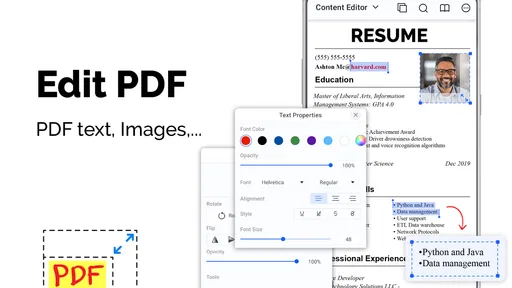
- Editing tools are basic and limited.
FAQs for PDF Reader – PDF Viewer
What features does PDF Reader – PDF Viewer offer?
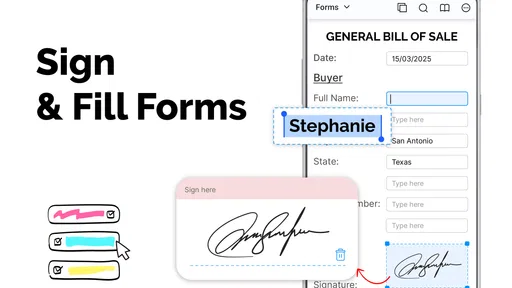
PDF Reader – PDF Viewer provides a comprehensive set of features including the ability to view, annotate, and highlight PDFs. Users can also fill out forms, sign documents, and bookmark pages for easy access. The app supports various viewing modes and allows for seamless sharing of documents via email or cloud services.
Is PDF Reader – PDF Viewer free to use?
PDF Reader – PDF Viewer is available as a free download with basic features. However, it offers in-app purchases and subscriptions to unlock advanced functionalities such as ad-free usage, enhanced annotation tools, and cloud storage integration. Users should review the pricing and features to decide if the premium version meets their needs.
What file formats are supported by PDF Reader – PDF Viewer?
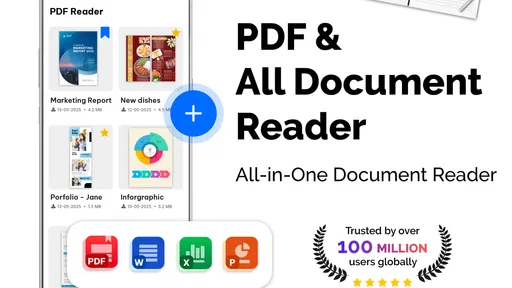
In addition to PDFs, PDF Reader – PDF Viewer supports a variety of file formats such as Word, Excel, PowerPoint, and images. This versatility makes it a useful tool for users who need to access and manage different document types from a single app. It ensures seamless file handling across various formats.
Can I use PDF Reader – PDF Viewer offline?
Yes, PDF Reader – PDF Viewer can be used offline, allowing users to view and annotate their documents without an internet connection. This is particularly useful for individuals who need to work on the go or in areas with limited connectivity. Any changes made offline will sync once the device reconnects to the internet.
Is PDF Reader – PDF Viewer secure for handling sensitive documents?
PDF Reader – PDF Viewer takes security seriously by offering features like password protection and encryption for sensitive documents. Users can confidently handle confidential files, knowing that their information is safeguarded. It is recommended to regularly check for updates to ensure the latest security features are installed.


